
Configure real-time disruptions
Real-time disruptions are a collection of features that alert users about disruptions along their route and allow users to report and verify disruptions that they encounter. Examples of disruptions include vehicle accidents, traffic congestion, police and speed camera presence, construction, lane closures, and certain weather conditions. This page explains the real-time disruption features and their configuration options, including considerations for apps that use custom navigation UIs.
Real-time disruption features
The Navigation SDK includes the following real-time disruption features as part of the core navigation experience:- Interactive disruption callouts along routes.
- Automated disruption alerts with voting during active navigation.
- Disruption reporting during active navigation.
These features are configurable and enabled by default. The following sections provide more information about the features and available configuration options.
Interactive disruption callouts along routes
When an app displays a route, either in a route overview or during active navigation, any current disruptions appear as callouts along the route. When you enable the traffic layer, off-route disruptions also appear on the map. Callouts include an icon that indicates the type of disruption.

You can control the display of disruption callouts along routes using setTrafficPromptsEnabled, which also controls the display of automated alerts when a user approaches a disruption.
// Using the SupportNavigationFragment
mNavFragment.setTrafficPromptsEnabled(true);

// Using the NavigationView
navigationView.setTrafficPromptsEnabled(true);
Display disruption details when a user taps a callout
Tapping a disruption callout opens an info card with more details. This applies to both on-route and off-route callouts, though off-route callouts only appear if the traffic layer is enabled. The card displays the disruption type, the time it was last reported, and sometimes an option to vote on whether the disruption is still present. The info card type and its configuration options vary depending on whether the user is in active navigation.
Callout info cards on route overviews, prior to starting active navigation
Before starting active navigation, users can tap an on-route or off-route callout on the map or route overview to open an info card. Off-route callouts require the traffic layer to be enabled. The info card provides more details about the disruption.

You can control the ability of users to tap disruption callouts on route overviews to display more
information using
setTrafficIncidentCardsEnabled
.
// Using the SupportNavigationFragment
mNavFragment.setTrafficIncidentCardsEnabled(true);

// Using the NavigationView
navigationView.setTrafficIncidentCardsEnabled(true);
Callout info cards during active navigation
During active navigation, users can tap an on-route or off-route disruption callout to open an info card. The card shows the disruption type and the last reported time, and it includes buttons for users to vote on whether the disruption is still present.
Voting is available for on-route and off-route disruptions within 5 km of the user excluding road closures. Google processes these votes to help determine whether to continue showing the disruption. The votes may also appear on the map for other Google Maps and Navigation SDK users.

You can control the display and tappability of disruption callouts during active navigation using
setTrafficPromptsEnabled
, which also controls the
display of callouts along routes and the
display of automated alerts when a user approaches a disruption.
// Using the SupportNavigationFragment
mNavFragment.setTrafficPromptsEnabled(true);

// Using the NavigationView
navigationView.setTrafficPromptsEnabled(true);
Automated disruption alerts with voting during active navigation
During active navigation, when a user approaches a disruption along a route, a prompt appears with information about the disruption and buttons for voting on whether the disruption is still present. Votes submitted by users are processed by Google and may be surfaced on the map for other Google Maps and Navigation SDK users, as well as used to determine whether to continue showing the disruption.
You can configure the display of alert prompts during active navigation using
setTrafficPromptsEnabled
, which also controls the display
of callouts along routes.
// Using the SupportNavigationFragment
mNavFragment.setTrafficPromptsEnabled(true);

// Using the NavigationView
navigationView.setTrafficPromptsEnabled(true);
Disruption reporting during active navigation
During active navigation mode, a button appears on the navigation UI that allows users to report new disruptions along their route. When a user taps the button, a menu with the available disruption types to report appears. Reports that users submit are processed by Google and may be surfaced on the map for other Google Maps and Navigation SDK users.
Reporting a road closure may present an alternate route to bypass the blocked segment, prompting the user to confirm or deny the reroute. This feature is subject to availability.
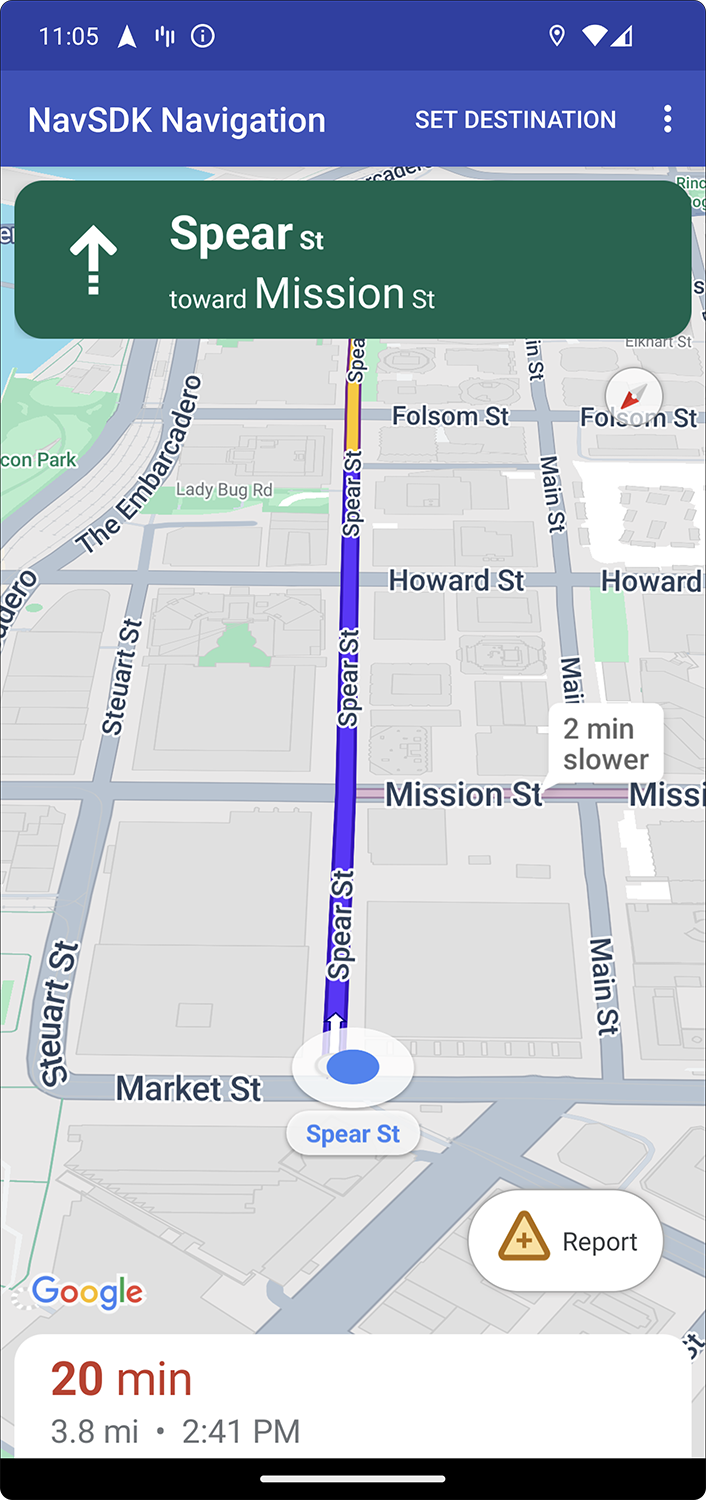

Show or hide the standard reporting button
You can configure the visibility of the standard reporting button during active navigation using
setReportIncidentButtonEnabled
.
// Enables the incident reporting button to show in situations where incident
// reporting is possible.

// Using the SupportNavigationFragment
mNavFragment.setReportIncidentButtonEnabled(true);

// Using the NavigationView
navigationView.setReportIncidentButtonEnabled(true);
Add a custom reporting button
In place of the standard disruption reporting button, you can add a custom reporting button to the
navigation UI. When the user clicks the custom button, you can trigger the display of the reporting
menu by calling the showReportIncidentsPanel method. Before adding a custom reporting
button, verify that the app is in active navigation and the user is in a country where reporting
is enabled by calling isIncidentReportingAvailable. If either of these is not true,
the reporting menu won't appear.
  Button customReportIncidentButton = findViewById(R.id.custom_reporting_button);

  // Check if reporting is available before displaying your button
  customReportIncidentButton.setVisibility(
      navigationView.isReportingAvailable ? View.VISIBLE : View.GONE);

  // Trigger the reporting flow if the button is clicked
  customReportIncidentButton.setOnClickListener(v ->
      navigationView.showReportIncidentsPanel());
Work with custom navigation UIs
If your implementation of the Navigation SDK includes custom UI elements, you need to consider the real-time disruption elements in order to avoid conflicts.
Reporting button positioning
By default, the disruption reporting button is positioned at the bottom end/trailing corner of the map—on the right side for left-to-right languages and left side for right-to-left languages. If you need to move the reporting button to make space for custom UI elements, add aBOTTOM_END_BELOW or FOOTER custom control, which will push the
position of the button up on the screen. Placing your own custom UIs within the custom controls
also ensures that any prompts displayed by the Navigation SDK are properly layered over your
custom UI elements while displayed. If you are not able to use custom controls, use the
Prompt Visibility API to manage potential UI conflicts.
Prompt Visibility API (Experimental)
The Prompt Visibility API helps you avoid conflicts between UI elements generated by the Navigation SDK and your own custom UI elements by adding a listener to receive a callback before a Navigation SDK UI element is about to appear and as soon as the element is removed. You can receive callbacks for real-time disruption elements, including info cards, prompts, and the disruption reporting menu—as well as for other notifications generated by the Navigation SDK.// Sample listener val listener: PromptVisibilityChangedListener = { isVisible -> if (isVisible) { customFab.visibility = false customFooter.visibility = false moveSomeOtherThingsAround() } else { customFab.visibility = true customFooter.visibility = true moveSomeThingsBackToWhereTheyWereBefore() } } // Inside onCreate() navigationView.addPromptVisibilityChangedListener(listener) // Inside onDestroy() navigationView.removePromptVisibilityChangedListener(listener)